
Verify Insurance Button in Open Dental: Difference between revisions
Chris.Hansen (talk | contribs) |
Chris.Hansen (talk | contribs) No edit summary |
||
| Line 6: | Line 6: | ||
You will need to find the url for the target Insurance Verification pathway within your Foji instance. | You will need to find the url for the target Insurance Verification pathway within your Foji instance. | ||
# Access the ForgeAI application within Foji | # Access the '''ForgeAI''' application within Foji [[File:ForgeAI-App.png|frameless]] | ||
# Go to Pathways using the navigation menu | # Go to '''Pathways''' using the navigation menu [[File:ForgeAI-Nav-Menu-Pathways.png|frameless]] | ||
# Select the desired pathway in the list | # Select the desired pathway in the list [[File:ForgeAI-Pathways-List.png|frameless]] | ||
# Copy the url from your browser address bar | # Copy the url from your browser address bar up to but not including the # symbol [[File:ForgeAI-Pathways-Url.png|frameless|706x706px]] | ||
== Creating a Program Link == | == Creating a Program Link == | ||
# Login to Open Dental as an administrator | # Login to Open Dental as an administrator | ||
# Go to Program Links under the Setup menu in the top menu bar | # Go to '''Program Links''' under the '''Setup''' menu in the top menu bar [[File:OpenDental-Menu-Setup-ProgramLinks.png|frameless]] | ||
# Click Add at the bottom of the window | # Click '''Add''' at the bottom of the window [[File:OpenDental-ProgramLinks-Add.png|frameless]] | ||
# Enter the program link information | # Enter the program link information [[File:OpenDental-ProgramLinks-Edit.png|frameless|774x774px]] | ||
#* Description: Foji - Start Insurance Verification | #* '''Description''': Foji - Start Insurance Verification | ||
#* Enabled: Checked | #* '''Enabled''': Checked | ||
#* Path of file to open: [ | #* '''Path of file to open''': PathwayUrlFromAbove/start?patient_id=[PatNum] | ||
#* Text on button: Verify Insurance | #** Example: <nowiki>https://admin.foji.io/automl/pathways/paths/3a92b8f5-7c52-414b-9632-f7ce929ca8d5/start?patient_id=</nowiki>[PatNum] | ||
# Select the desired target modules from the list. The following modules are recommended: AccountModule, ApptModule, FamilyModule | #* '''Text on button''': Verify Insurance | ||
# Download the FojiSoft logo:[[File:Fojisoft-logo-22x22.png|frameless]] | #* Select the desired target modules from the list. The following modules are recommended: '''AccountModule''', '''ApptModule''', '''FamilyModule''' | ||
# Click Import | # Download the FojiSoft logo:[[File:Fojisoft-logo-22x22.png|frameless]] (https://prod-creative-tadpole-wiki.s3.amazonaws.com/Fojisoft-logo-22x22.png) | ||
# Click '''Import''' | |||
#Select the logo file | #Select the logo file | ||
#Click Save | #Click '''Save''' | ||
== Using the Button == | |||
The new '''Verify Insurance''' will be added to the toolbars in the selected modules. | |||
[[File:OpenDental-Button-VerifyInsurance.png|frameless]] | |||
Click the button to start the insurance verification process for the selected patient. | |||
Revision as of 19:14, 8 July 2025
Adding custom functionality to Open Dental can significantly streamline your practice's workflows, especially when integrating with external services like Foji for insurance verification. One of the most effective ways to do this is through Open Dental’s Program Links feature. Program Links allow users to connect Open Dental with third-party applications by launching those programs or URLs with patient-specific data embedded in the link. This capability makes it easy to trigger external workflows, such as verifying insurance, directly from the Open Dental interface.
In this how-to article, we’ll walk through the steps to create a custom button in Open Dental that starts the insurance verification process for a patient using Foji. By configuring a Program Link and placing the button in a convenient location—such as the Family module or Account module—you can enable staff to initiate verification with just a single click. This guide will cover everything from enabling the Program Link to defining the launch URL format, ensuring the integration works seamlessly with patient context.
Getting Pathway Url
You will need to find the url for the target Insurance Verification pathway within your Foji instance.
- Access the ForgeAI application within Foji

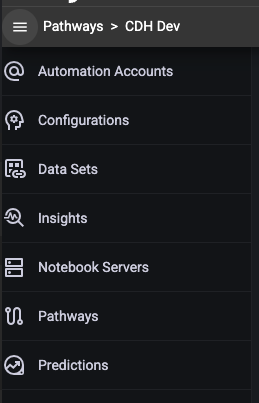
- Go to Pathways using the navigation menu
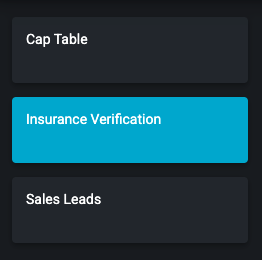
- Select the desired pathway in the list
- Copy the url from your browser address bar up to but not including the # symbol



Creating a Program Link
- Login to Open Dental as an administrator
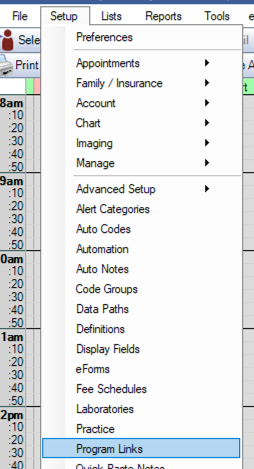
- Go to Program Links under the Setup menu in the top menu bar
- Click Add at the bottom of the window

- Enter the program link information
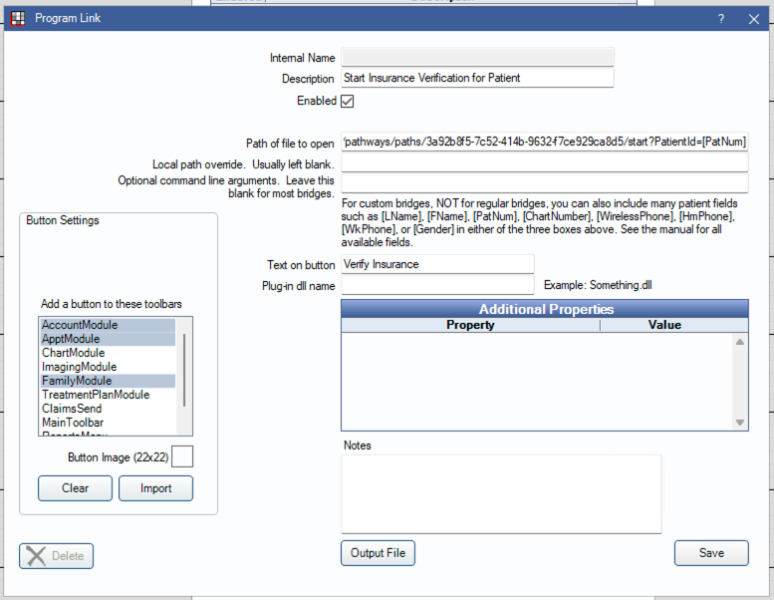
- Description: Foji - Start Insurance Verification
- Enabled: Checked
- Path of file to open: PathwayUrlFromAbove/start?patient_id=[PatNum]
- Example: https://admin.foji.io/automl/pathways/paths/3a92b8f5-7c52-414b-9632-f7ce929ca8d5/start?patient_id=[PatNum]
- Text on button: Verify Insurance
- Select the desired target modules from the list. The following modules are recommended: AccountModule, ApptModule, FamilyModule
- Download the FojiSoft logo:
 (https://prod-creative-tadpole-wiki.s3.amazonaws.com/Fojisoft-logo-22x22.png)
 - Click Import
- Select the logo file
- Click Save


Using the Button
The new Verify Insurance will be added to the toolbars in the selected modules.

Click the button to start the insurance verification process for the selected patient.